Many developers and database administrators rely on a mix of command-line tools, phpMyAdmin, and hosting control panels to work with MySQL. Dedicated MySQL GUI tools offer a more streamlined experience for database development and administration. They simplify writing SQL, browsing schemas, editing data, comparing objects, managing users, and troubleshooting performance issues without switching between multiple tools.
In this guide, we’re comparing the best MySQL GUI tools for 2026. The focus is on the things developers actually use every day: SQL editing, AI features, visual query builders, schema design, administration tools, compatibility, pricing, and overall usability.
On this page
- Summary
- Evaluation methodology: How we ranked MySQL GUI tools
- Quick comparison table: Best MySQL GUIs at a glance
- 1. dbForge Studio for MySQL
- 2. MySQL Workbench
- 3. DBeaver
- 4. DataGrip
- 5. Navicat for MySQL
- How to choose the best MySQL GUI for your workflow
- Conclusion
- FAQ
Summary
- Compare the top MySQL GUI tools for 2026.
- Review SQL, AI, and administration features.
- Compare pricing and free editions.
- Match tools to your workflow.
- Choose the right MySQL client faster.
Evaluation methodology: How we ranked MySQL GUI tools
Not every MySQL GUI is built for the same type of user. Some focus on SQL development, while others are stronger at administration, modeling, or multi-database work.
For this guide, we looked at the features that developers, DBAs, architects, and analysts use most often. That includes SQL editing, visual query building, schema design, data editing, performance analysis, AI features, administration tools, compatibility, and pricing.
| Evaluation area | What we looked at | Why it matters |
|---|---|---|
| SQL editor | Autocomplete, formatting, navigation | Faster SQL development |
| Visual query builder | Visual query creation with auto-generated joins | Easier query building |
| Schema tools | Browsing and database design | Better database management |
| Data editing | Import, export, and grid editing | Everyday productivity |
| Performance tools | Profiling and execution plans | Query optimization |
| AI features | SQL generation and optimization | Faster development |
| Administration | Backup, restore, user and permission management | Simpler maintenance |
| Compatibility | MySQL, MariaDB, cloud, OS | Deployment flexibility |
| Pricing | Free versions, trials, paid plans | Better long-term value |
The goal is simple: help you quickly narrow down the tools that best match your work and budget.
Quick comparison table: Best MySQL GUIs at a glance
If you’re comparing several tools, this table is the fastest place to start. It highlights the differences that matter most in day-to-day work, including AI support, visual query building, schema and data management, free availability, and platform support. Three of the five tools run natively on Windows, macOS, and Linux, making them strong candidates if you need a Linux MySQL GUI client for your development or production environment.
Use it to narrow your MySQL GUI tools list before diving into the detailed reviews below.
| Tool | AI support | Visual query builder | Schema & data tools | Free version / trial |
|---|---|---|---|---|
| dbForge Studio for MySQL Full MySQL & MariaDB development |
Yes dbForge AI Assistant |
Yes | Database Designer (ER diagrams), Schema/Data Compare, Copy Database, backup & restore, reporting | Free Express edition 30-day trial of paid plans |
| MySQL Workbench Official MySQL development & administration |
No native AI | Yes | Data modeling & ER diagrams, Performance Dashboard, administration | Free |
| DBeaver Multi-database development |
Yes Community: bring-your-own API key |
Paid only, from Lite tier ($113/user/year) | Data editor, ER diagrams, multi-database support | Free Community Edition 14-day trial of paid tiers |
| DataGrip SQL-heavy development & JetBrains users |
Yes JetBrains AI |
No dedicated builder — smart SQL editor instead (still an open feature request) | Smart SQL editor, refactoring, multi-database support | Free for non-commercial use (since Oct 2025) commercial from $10.90/user/month |
| Navicat for MySQL Administration & synchronization workflows |
Yes AI Assistant |
Yes, Query Builder | Data modeling, sync, backup, import/export | No free edition (Navicat Premium Lite is a separate free multi-DB product) 14-day trial |
The best GUI for MySQL depends on your workflow. If you mainly write SQL, editor quality and code assistance may matter most. If you’re responsible for administration, profiling, synchronization, or schema management, a more complete database IDE can save a lot of time over the long run.
5 Best MySQL GUI tools for developers in 2026
There’s no single best MySQL GUI. Some tools are great for writing SQL, while others include schema design, sync, performance tools, and administration features.
The right choice also depends on what you do. Developers, DBAs, architects, and analysts all have different priorities.
To make things easier to compare, each review follows the same format and covers features, strengths, limitations, pricing, and compatibility.
1. dbForge Studio for MySQL

Platforms: Windows (macOS and Linux via compatibility options)
Best for: Full-cycle MySQL and MariaDB development and administration
dbForge Studio for MySQL is an IDE for MySQL and MariaDB that brings SQL development, database design, administration, data management, reporting, and automation into one tool. It also includes an AI Assistant that can generate SQL from plain English (or any natural language), explain queries, suggest improvements, and help with everyday SQL tasks.
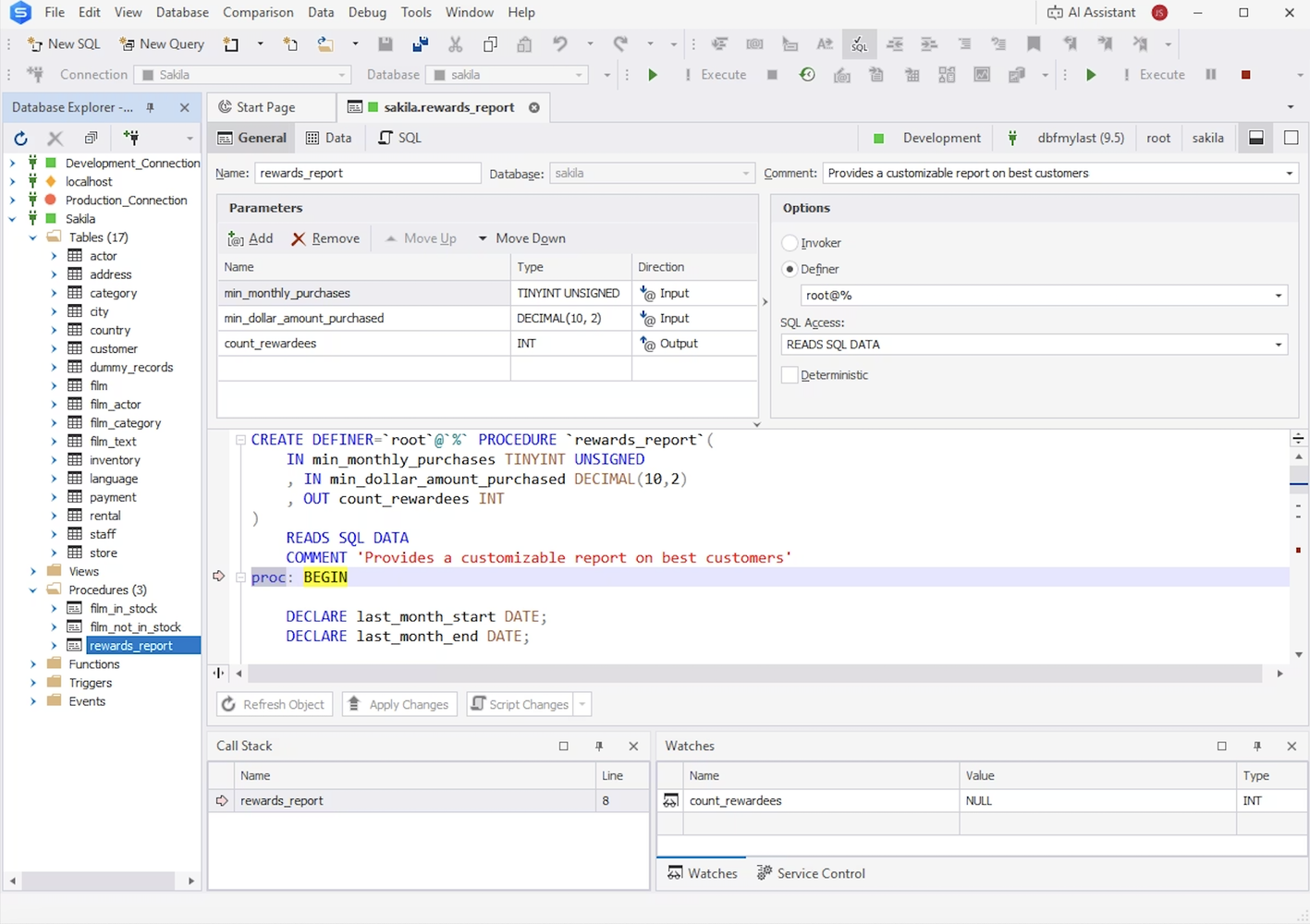
Key features:
- dbForge AI Assistant
- SQL editor and coding assistance
- Visual Query Builder
- Version control integration
- MySQL Code Debugger
- Query Profiler and execution plans
- Database projects
- Schema and data compare & sync
- Copy databases
- Backup and restore
- Data analysis and reporting
Pros:
- Covers development and administration in one IDE
- Strong SQL development and coding tools
- Built-in comparison and synchronization features
- AI assistance for common SQL tasks
Cons:
- More features than casual users may need
- Full feature set requires a paid plan
Price: Paid plans start from $9.95/month. A 30-day free trial and free Express edition is available.
Compatibility: MySQL, MariaDB, Amazon RDS & Aurora, HeatWave MySQL, Percona, Galera Cluster, and other MySQL-compatible environments.
What users say:
“I think it is a pretty good tool, I particularly like the autocomplete, the Data Comparison and Sync. In some cases the Pivot table and query history helped me a lot to debug or check the data. Database diagrams are very useful too for design and check the relationships between tables.”
Source: G2
2. MySQL Workbench
Platforms: Windows, macOS, Linux
Best for: Official MySQL development, modeling, and administration
MySQL Workbench is Oracle’s official visual tool for MySQL. It is a free app that combines SQL development and data modeling and administration features with tools for server configuration, user administration, backup and recovery, performance monitoring and database migration.
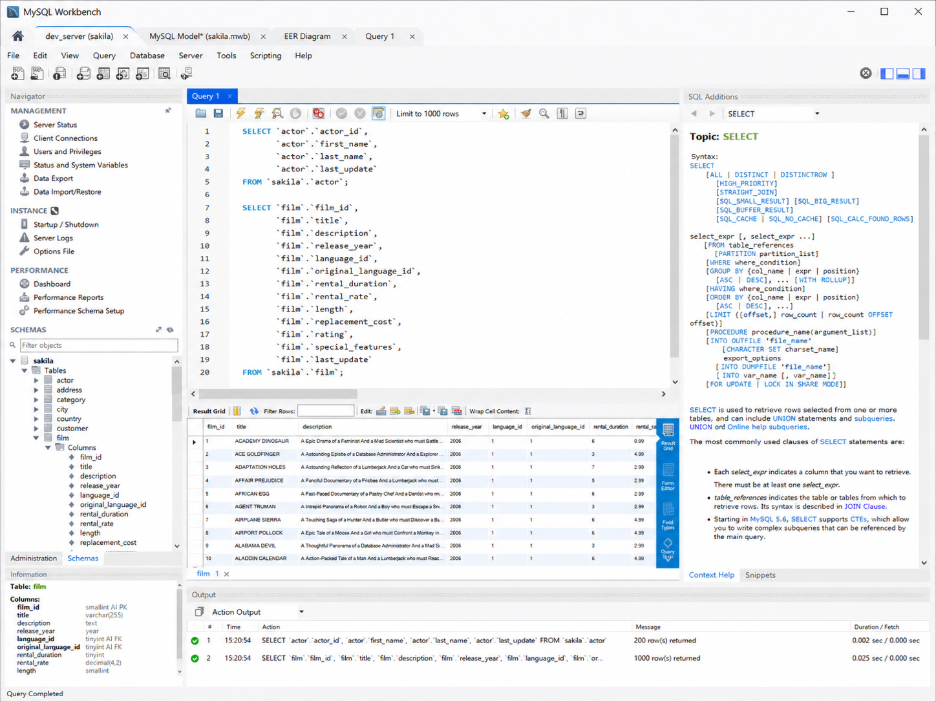
Key features:
- SQL Editor
- Visual SQL development tools
- Data modeling and ER diagrams
- Server administration
- Performance Dashboard and Visual Explain
- User administration
- Backup and restore
- Database migration tools
Pros:
- Official MySQL tool from Oracle
- Free to use
- Strong data modeling capabilities
Cons:
- No built-in AI features
- Some workflows feel dated compared to newer IDEs
Price: Free.
Compatibility: MySQL.
What users say:
“It’s easy to work with a large amount of data in a simple table format, and you can also visualize those tables as an ER Diagram, which is very helpful for finding the links between tables. The user management tools, server logs, and the ability to export the database in .sql format are really handy features.”
Source: G2
3. DBeaver

Platforms: Windows, macOS, Linux
Best for: Developers working with multiple database systems
DBeaver is a cross-platform database management tool with support for MySQL, MariaDB, PostgreSQL, SQL Server, SQLite, and many other relational databases. The free Community Edition covers everyday SQL development and database management, while the commercial editions add features like AI assistance, Visual Query Builder, and broader cloud and NoSQL support.
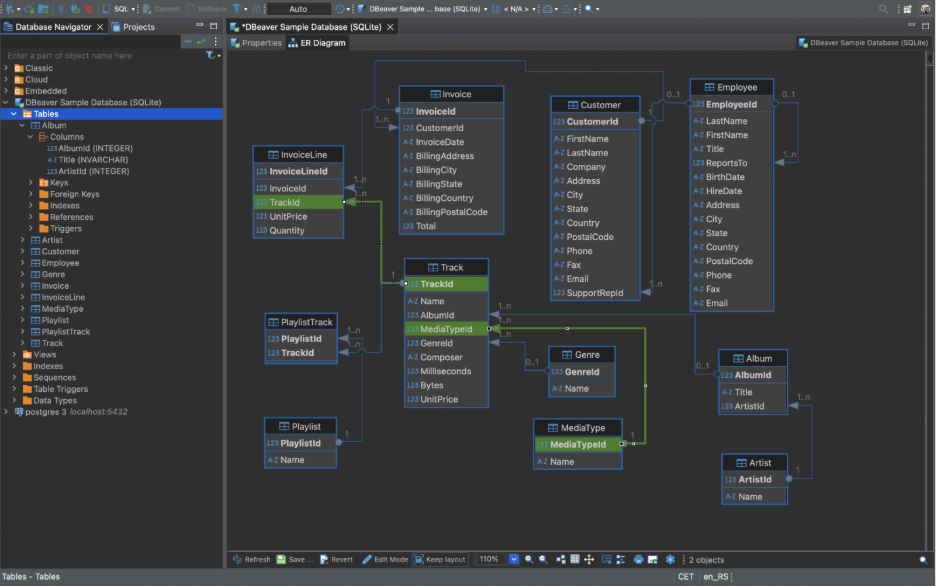
Key features:
- SQL Editor
- Data Editor
- Task management
- Database maintenance tools
- Multi-database support
- Import and export tools
- ER diagrams and metadata browsing
Pros:
- Free and open-source Community Edition
- Supports a wide range of database systems
- Good choice for multi-database environments
Cons:
- Some advanced features are only available in paid editions
- Interface can feel overwhelming for new users
Price: Free Community Edition with paid commercial editions available. Paid plans start from $12/month. A 14-day free trial and a free Community edition are available.
Compatibility: MySQL, MariaDB, PostgreSQL, SQL Server, SQLite, Apache family databases, and many other relational database systems.
What users say:
“What I like best about DBeaver is how easy it makes working with multiple databases in one place. Instead of switching between different tools, everything is available in a single interface, which really improves daily workflow.”
Source: G2
4. DataGrip

Platforms: Windows, macOS, Linux
Best for: SQL-heavy development and multi-database workflows
DataGrip is the JetBrains database IDE for professional DBAs and developers. It’s all about SQL productivity with an intelligent query console, code assistance, query history, version control integration and built-in JetBrains AI features.
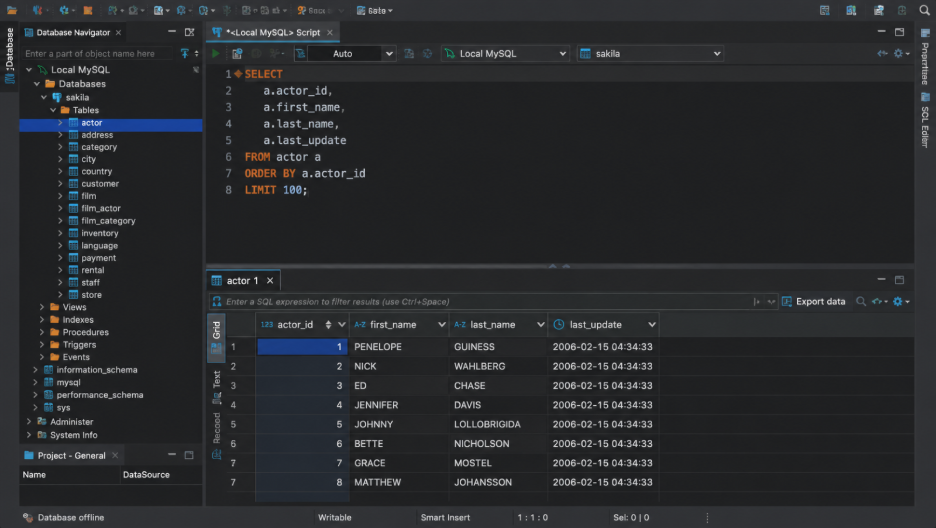
Key features:
- Intelligent query console
- Smart code completion
- JetBrains AI integration
- Query history
- On-the-fly analysis and quick-fixes
- Import and export in multiple formats
- Version control integration
- Multi-database support
Pros:
- Excellent SQL editing experience
- Strong multi-database support
- Tight integration with the JetBrains ecosystem
Cons:
- Subscription required for commercial use
- Less focused on database administration than some competitors
Price: Free for non-commercial use. Paid plans start from $10.9/month for individuals and $25.90/month for organizations. A 30-day free trial is available.
Compatibility: MySQL, MariaDB, PostgreSQL, SQL Server, Oracle, SQLite, MongoDB, Redis, Snowflake, BigQuery, Cassandra, and many other relational and NoSQL databases.
What users say:
“The SQL intelligence in DataGrip is genuinely on another level compared to most database clients. The autocomplete understands your schema deeply, resolves table aliases across joins, catches syntax errors before you even run the query and suggests fixes in real time. For someone writing complex SQL day in and day out that alone makes a noticeable difference.”
Source: G2
5. Navicat for MySQL

Platforms: Windows, macOS, Linux
Best for: Database development, administration, and synchronization
Navicat for MySQL combines SQL development, administration, data modeling, synchronization, and automation in a single desktop application. It also includes an AI Assistant for tasks like SQL generation, query explanation, optimization, and error checking.
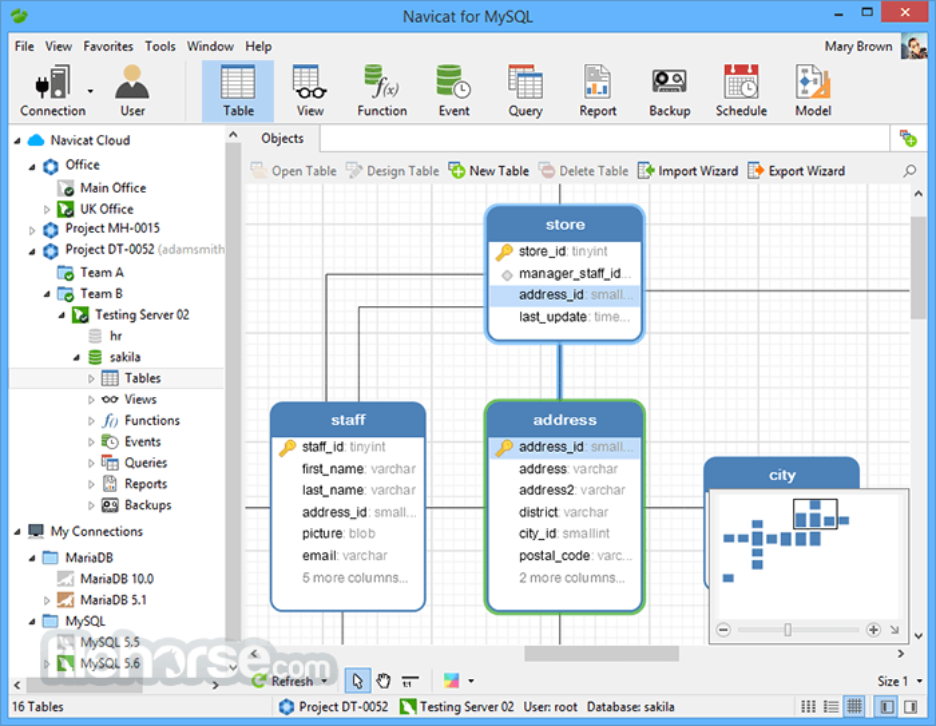
Key features:
- SQL editor with code completion
- Query Builder and Visual Explain
- AI Assistant
- Data modeling
- Backup and restore
- Data and structure synchronization
- Import and export tools
- Automation and scheduled tasks
- ER diagram view
Pros:
- Strong administration and synchronization features
- Built-in modeling and automation tools
- Cross-platform support
Cons:
- Commercial product
- Some features vary by edition
Price: Non-commercial plans start at $9.99/month and Standard plans at $14.99/month. Free 14-day trial available.
Compatibility: MySQL, MariaDB, OceanBase, and cloud-hosted MySQL deployments on platforms including AWS, Azure, Google Cloud, Oracle Cloud, Alibaba Cloud, Tencent Cloud, and Huawei Cloud.
What users say:
“It offers multiple features and an easy-to-use GUI. The standout feature that has made me stick with it is the database synchronization, which helps me transfer data between databases easily.”
Source: G2
How to choose the best MySQL GUI for your workflow
The best MySQL GUI depends on what you actually do every day. A developer writing SQL all day won’t have the same priorities as a DBA managing backups or an architect designing schemas.
Before comparing tools, think about your workflow, your environment, and the features you’ll use regularly rather than the longest feature list.
Define your main database tasks
Start with the basics. Do you mostly write SQL queries, edit data, design schemas, compare databases, profile slow queries, or manage users and backups?
If your work is mostly SQL development, a strong editor and code completion may be enough. If you’re responsible for production databases, you’ll probably benefit from tools that include synchronization, backup, reporting, and administration features.
Check SQL editor and code assistance features
For many developers, the SQL editor is the feature they’ll use most. Good autocomplete, syntax highlighting, formatting, snippets, object navigation, and query history can make a noticeable difference over time.
Some modern tools also include AI-powered SQL generation, explanations, and optimization suggestions that reduce repetitive work.
Look for visual query building and schema design
Visual query builders can save time when creating complex joins and filters, especially for users who don’t want to hand-write every query.
If you’re involved in database design, ER diagrams, schema visualization, and object browsing can make large databases much easier to understand and maintain.
Compare data editing, import, export, and reporting
Many everyday tasks happen outside the SQL editor. Editing rows in a grid, filtering data, importing CSV or Excel files, exporting results, and generating reports are all common requirements.
If you work with business users or analysts, these features can become just as important as SQL development itself.
Evaluate query profiling and performance tools
When performance matters, look beyond basic query execution. Features like execution plans, query profiling, index analysis, and slow query diagnostics can make troubleshooting much easier.
These capabilities are especially valuable for production systems and larger databases where small inefficiencies can have a significant impact.
Find AI assistance for SQL workflows
AI is moving into daily database development. Depending on the product it can generate SQL from natural language, explain existing queries, suggest optimizations, review code and help troubleshoot errors.
For teams looking for an AI tool for SQL query optimization, these features can reduce manual work and speed up development cycles without requiring deep query-tuning expertise.
Free vs. paid vs. trial
For learning, small projects, or basic administration, free tools are often “good enough.” They can provide decent SQL editing and everyday database management with no licensing fees.
If you require advanced profiling, schema and data comparison, automation, reporting, AI help, debugging or professional support, paid products are easier to justify. For teams that work with databases on a daily basis, the added productivity can quickly outweigh the licensing cost.
Conclusion
The best MySQL GUI depends on your workflow. A simple SQL client is enough for some users, but others need a full suite of profiling, schema comparison, automation and administration tools all in one place.
Free tools can handle basic development or small projects. But for teams that live and breathe MySQL, things like AI assistance, visual query building, reporting, and synchronization can make a huge difference.
If you want a complete MySQL and MariaDB IDE, dbForge Studio for MySQL is one of the strongest options. It combines AI assistance, SQL development, query profiling, schema and data comparison, reporting, and administration features in a single environment.
FAQ
What is the best GUI for MySQL?
For most users, dbForge Studio for MySQL, MySQL Workbench, and DBeaver are among the top choices. However, the right option depends on your needs, whether that’s advanced development features, database administration, or a free cross-platform tool.
Is dbForge Studio for MySQL superior to MySQL Workbench?
Yes. MySQL Workbench is a good free tool. dbForge Studio has some extra features such as AI help, query profiling, schema comparison, automation.
phpMyAdmin 2026: Still useful?
Yes, it is still a valid choice for MySQL administration via browsers and routine database procedures.
What should I be looking for in MySQL GUIs?
Look at the SQL editor, query builder, schema design, data editing, performance tools, AI features, platform support, and pricing. Comparing several best MySQL GUI clients side by side can make the decision easier.
Are MySQL GUI tools helpful for query optimization?
Yes. They include profiling and execution plans in many cases, and some have AI-driven recommendations.
When is a free MySQL GUI good enough?
Learning, personal projects, simple administration. A paid tool could help with further work.
What is the best desktop MySQL GUI or web-based MySQL GUI?
Desktop tools are generally more feature-rich. Web-based tools are convenient for quick access and easy management.
Originally published on linkedin.com by Tyler Rees.